 |
PFTrack Documentation | Camera Presets |
Movie Camera Presets
Calibration Manager | Calibration Patterns | Loading Media | Movie Playback ControlsActive Metadata | Camera Preset | Calibration | Preset Manager
The Movie Camera Presets panel is composed of four main areas:
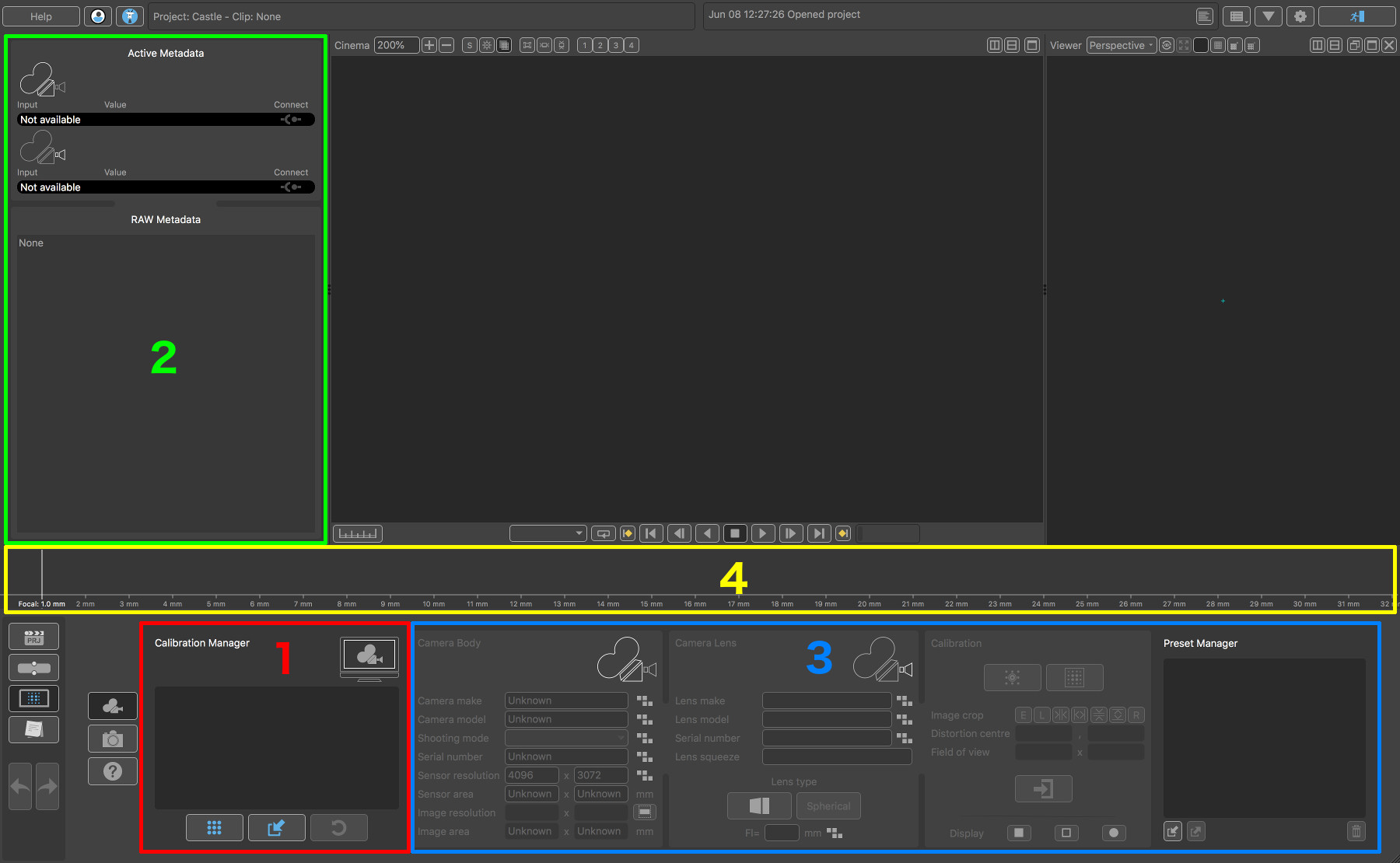
- The Calibration Manager (1), where media can be loaded ready for calibration
- The Active Metadata Window (2), where metadata present in the media is displayed, and can be connected to the virtual camera for use during calibration.
- The Camera Preset parameters (3), where camera body and lens parameters can be adjusted if required, and where the camera preset is built
- The Focal Range graph (4), where calibration patterns for individual focal lengths are displayed.
Calibration Manager
The Calibration Manager displays information about the current clip that is loaded for calibration:
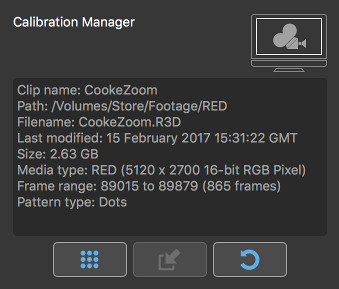
The following buttons are also available:
 - Clicking the Load Media button will display the File Browser where media can be loaded.
 - Clicking the Display Grid button will display a calibration pattern which can be shot directly on the desktop.
 - Clicking the Reset button will remove any media loaded and reset the panel to its default state.
Calibration Patterns
PFTrack supports both checkerboard and a regular grid of calibration dots (black dots against a white background). Either pattern can be used for calibration, although if a choice is possible we recommend the new calibration dots pattern as it is often able to provide more accurate detection and calibration results.
The dots pattern can be displayed full screen directly from within the PFTrack UI (for example, to project onto a screen for image capture). To do this, click the button.
This will display a popup window showing the keyboard controls:
- + increase the pattern size,
- - decrease the pattern size,
- Esc Close the window.
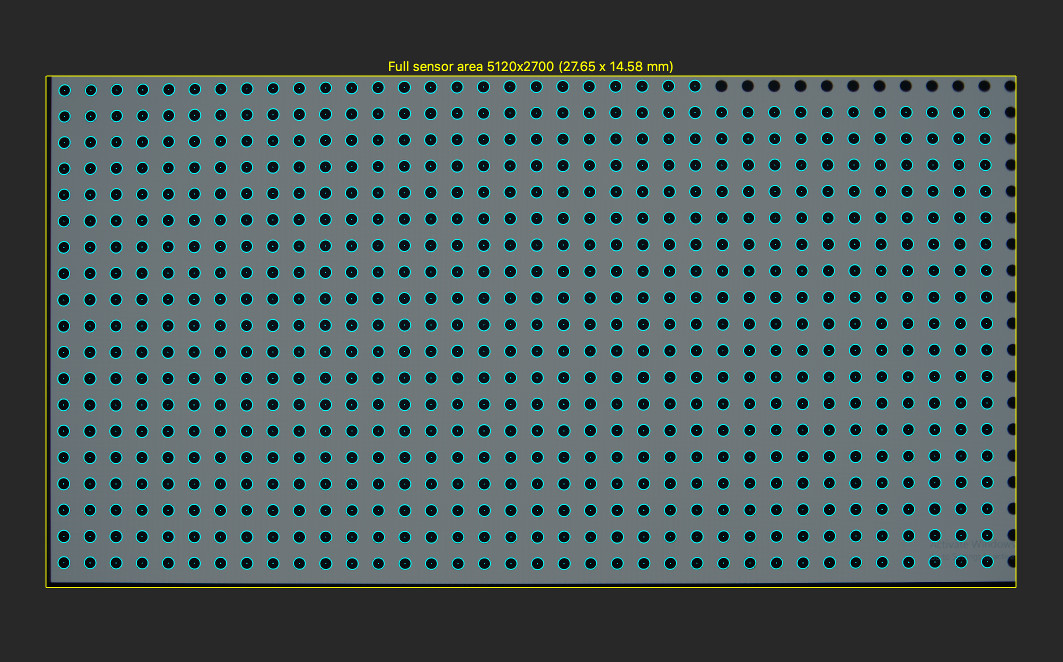
Clicking the OK button will display the calibration pattern full-screen. To ensure a large enough number of calibration points are detected, the grids should be shot front-on, filling as much of the image area as possible:
When calibrating zoom lenses, it is recommended to shoot calibration patterns at different focal lengths over the entire focal range of the lens. For example, a 50-150mm lens could be sampled with one calibration pattern every 10mm. For focal lengths between these samples, the lens distortion model will be interpolated. Lenses with a significant change in distortion over their focal range may require more calibration patterns to be shot.
Loading Media
When loading media from the native OS file browser, PFTrack will attempt to automatically determine whether the calibration dots or checkerboard pattern is present in the image.
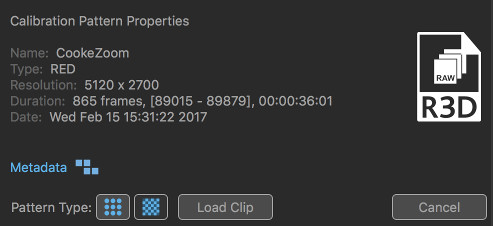
If the embedded file browser is used instead, an additional option is available where the type of calibration pattern can be selected:
 .
.
The pattern type can be changed between:
 - A regular grid of calibration dots
 - A uniform checkerboard pattern.
Movie playback controls
If a movie clip is loaded, the Movie Playback controls (1) can be used to play through the clip, or the ← and → keys used to move one frame backwards/forwards.
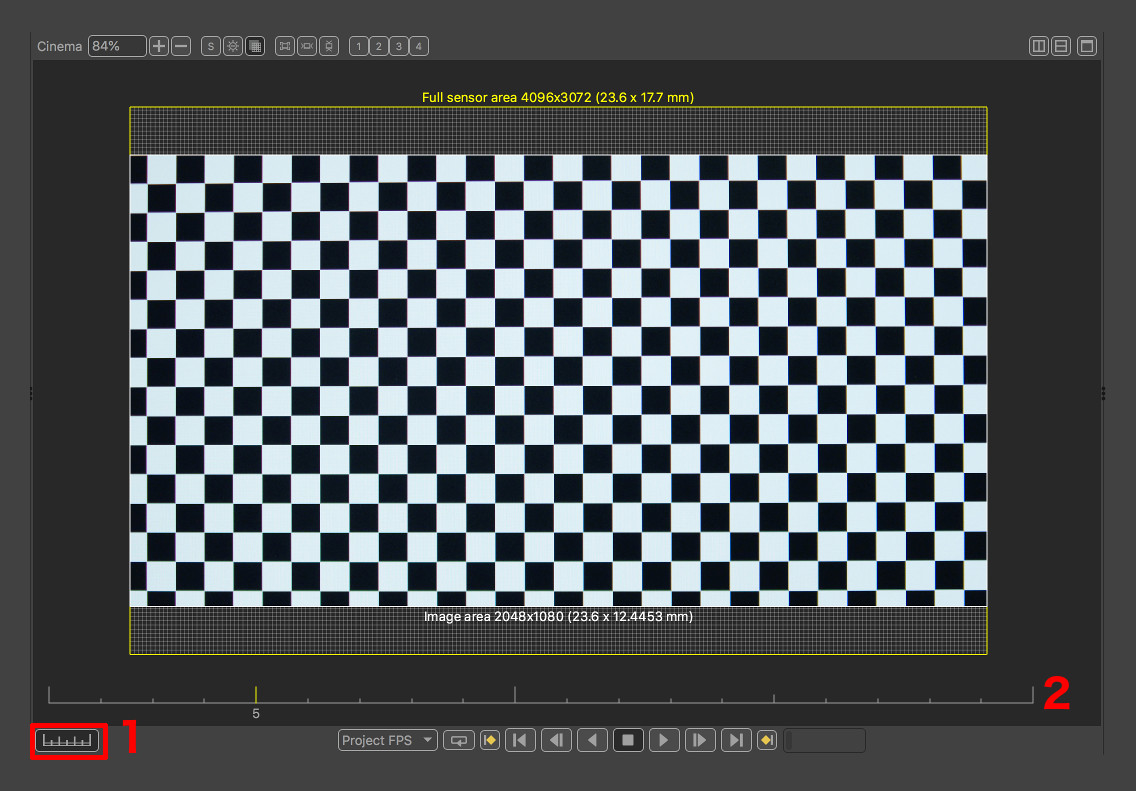
Alternatively, the frame number edit box (2) can be used to directly enter a frame number, or scrub to a specific frame by clicking inside the box and dragging left or right with the left mouse button held.
Active Metadata
After loading a clip, the Active Metadata window will display any metadata available to use in the top-left of the PFTrack window:
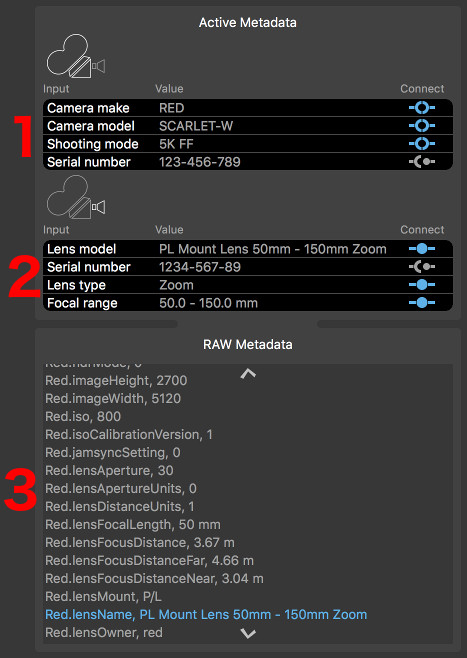
Information related to the Camera Body is shown at the top (1), and Camera Lens in the middle (2). The full list of all metadata in the media is shown in the RAW Metadata section (3).
The important values that PFTrack has identified are highlighted in blue. Individual sections of the RAW Metadata list can be opened and closed using the white arrow buttons to the right of each section title.
If PFTrack is not recognising the metadata from your media, you can update the metatags configuration file to tell it which metadata tags are important and what their function is. Further details are available in the section on Customizing PFTrack.
Connecting Metadata
If metadata is available to use, it must be connected to PFTrack's virtual camera in order to populate the camera preset data. This is achieved by clicking the Connect toggles next to each piece of metadata:
 : When in this state, metadata is not connected and is not being used (this is the default state).
 : This state indicates the metadata value is to be used as a Hint (for example, to find the best matching camera model containing sensor size information).
 : This state indicated the metadata value is to be used exactly as presented.
Not all states are available for each parameter input.
Camera Preset
Each camera preset contains information describing both the camera body and lens. These are separated out into two section of the panel:
Camera Body
The camera body parameters can be set to define the sensor size for your camera:
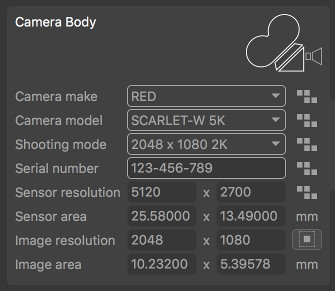
If the sensor size is unknown and is not available from your media metadata, click the Sensor Search button  to open the search window. This provides access to various online databases containing sensor sizes for different cameras and shooting modes, including The Pixel Farm's online database. Custom sensor sizes can also be defined as an XML file and selected for use instead of an online database.
Further information about searching for a suitable sensor size is available on the Sensor Database page.
You can also enter the sensor size manually by editing the values in the Active area edit boxes.
When setting sensor size manually, it is important that these values are set correctly for the shooting mode of the camera, especially when using windowed sensors, as it will influence the field of view of your camera. For example, when shooting with a full frame 5K image sensor but working with a 2K proxy clip, it is important that the shooting mode is set correctly for the 5K mode, rather than any other 2K mode.
If your image has been cropped or scaled non-uniformly, it is also important to ensure you adjust for this when entering the sensor size. For example, if part of the original full-frame image has been cropped from the top and bottom of your clip, then make sure to enter the horizontal sensor width, and let PFTrack re-calculate the appropriate height for your image.
Camera Lens
The Camera Lens panel contains parameters for your lens, including the lens make, model, serial number and squeeze factor if relevant:
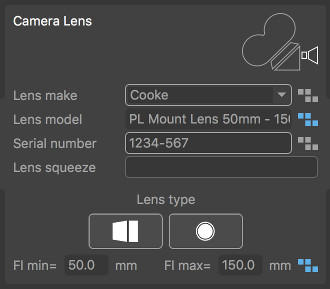
The Lens Type can also be selected by clicking on the following buttons:
 : This icon indicates a prime lens is being used, calibrating lens distortion a single focal length.
 : This icon indicates a zoom lens is being used, where lens distortion can be calibrated at multiple focal lengths.
 : This icon indicates a spherical lens distortion model will be used.
 : This icon indicates an anamorphic lens distortion model will be used.
When using a zoom lens, the focal range over which lens distortion can be calibrated is specified using the Focal range values:
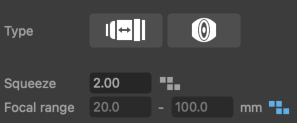
Similarly, the Squeeze value is available to set when using an anamorphic lens.
Calibration
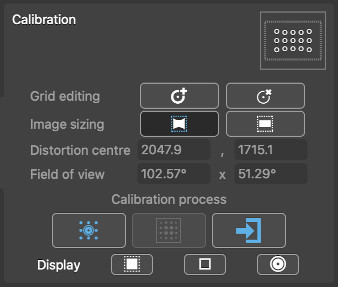
The Calibration panel is where lens distortion can be calibrated, and a camera preset generated:
Detecting Grids
To detect the calibration pattern, click the  button.
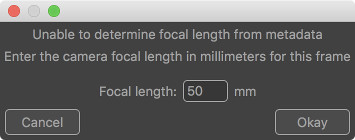
PFTrack will requires a focal length value for the frame, which it will attempt to read from metadata. A popup window display a popup window where a focal length can be entered:
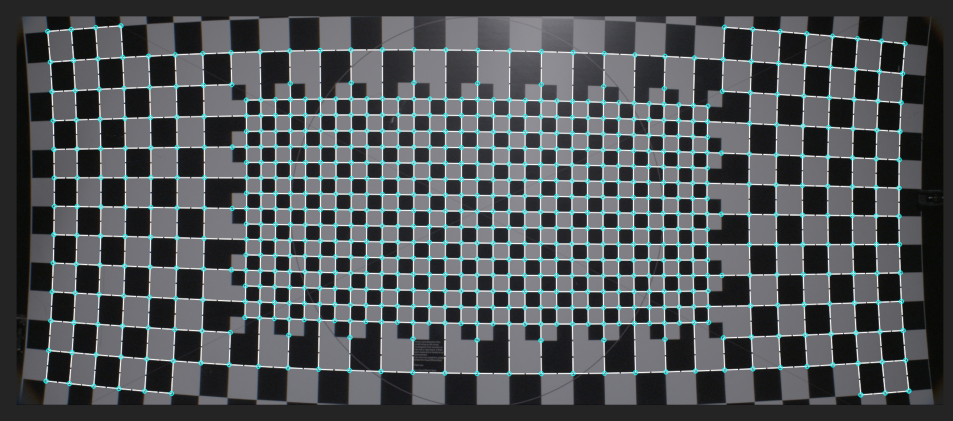
The calibration pattern will be detected automatically, with one point at each checkerboard corner or calibration dot, depending on the grid type specified when loading the media:
As each calibration pattern is detected, it will be displayed in the Focal Range Graph at the top of the presets panel:

Individual calibration patterns can be selected for display in the Cinema window by clicking on the focal length at which the calibration pattern was generated.
Using masks
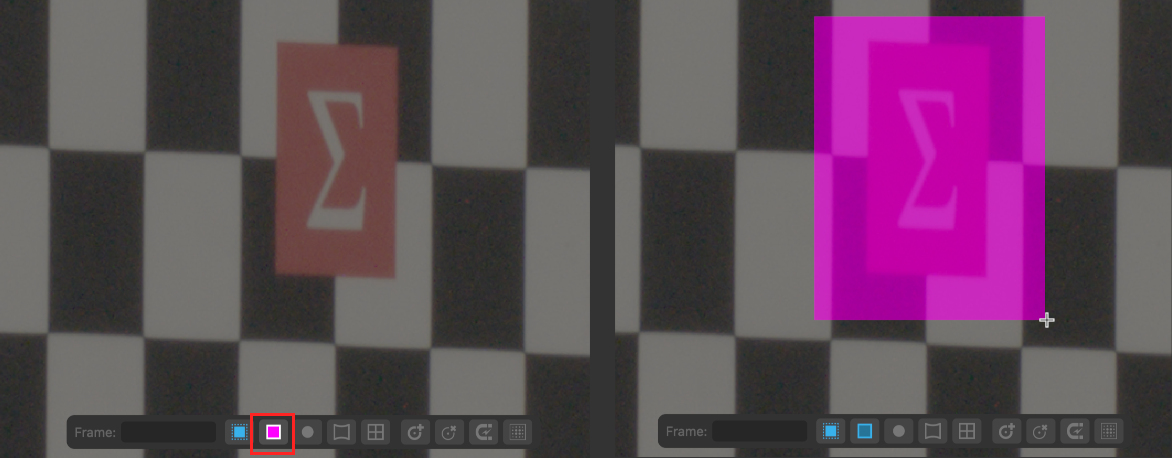
Whilst PFTrack is able to automatically detect a variety of lens grid patters, including bi-level grids of various types, logos or other items that obscure the grid points or otherwise complicate the image should be identified before the grid is detected.
This can be achieved by drawing a mask over the offending region using the mask tool in the Cinema window:
Editing the calibration grid points
Once the calibration grid points have been detected, tools are available to adjust or delete any incorrectly located points. These tools may be useful when using bi-level grids whose points cannot all be detected automatically:

 - This button allows the detected calibration grid points to be moved, or new grid points to be created using the left mouse button in the Cinema window.
 - This button allows detected grid points to be deleted by clicking and dragging with the left mouse button to draw a selection rectangle. All points inside the rectangle will be removed once the left mouse button is released.
 - When placing new grid points, the mouse location will snap to the nearest detected corner unless the snap button is enabled (this can be toggled using the Ctrl key.
The Undo and Redo buttons are available to correct any mistakes, and you can also click the button to start the detection process again and restart if required.
Solving for lens distortion
For prime lenses, detecting a single calibration pattern is enough to calibrate lens distortion.
For zoom lenses, calibration patterns should be detected at different focal lengths over the entire focal range. The exact number required will depend on how much lens distortion changes over the focal range.
In order to calibrate lens distortion, the following conditions must also be satisfied:
1. The Active sensor area in the Camera Body parameters has been set.
2. The Focal length value has been set for a prime lens, or the Focal range has been set for a zoom lens
Once calibration patters have been detected at one or more focal lengths, the calibrate button  button can be clicked to start the calibration process.
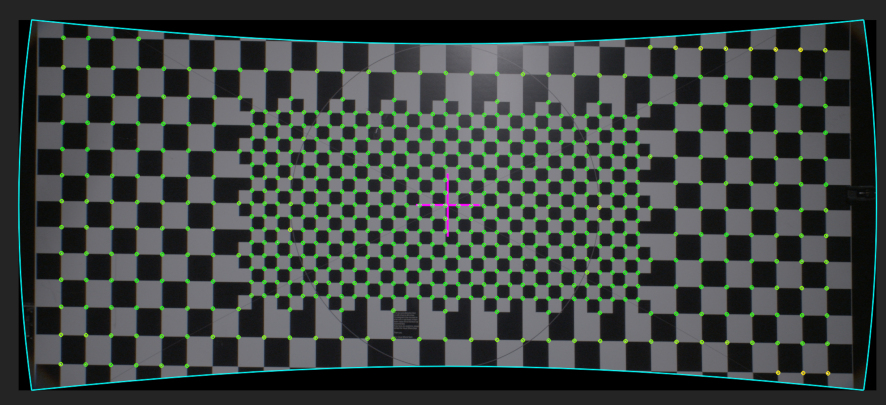
PFTrack uses a smart lens distortion model that is able to adapt to many different types of distortion patterns typically used for cinematography, including spherical wide angle and anamorphic lenses.
The calibration pattern points displayed in the Cinema window will be coloured to indicate the accuracy of the calibration, from red to yellow and green, and will undistort the source media using the calibrated lens distortion model.
Zoom lenses
Once a zoom lens is calibrated, clicking and dragging with the left mouse button in the Focal Range Graph will display the field of view of the camera at the current focal length:

Display options
The buttons in the Cinema window overlay can be used to switch various display options on or off:
 - The sensor overlay button will toggle display of the sensor overlay information.
 - The calibration points button will toggle display of the calibration points.
 - The undistorted grid button will toggle display of the undistorted grid image.
 - This grid lines button will toggle display of the detected grid lines.
Calibration refinement
Grid points can be edited after lens distortion is calibrated if required, for example if a grid point with a high error value is located and the grid point must be repositioned to improve accuracy.
To do this, first revert the image back to the original distorted plate by ensuring the undistorted grid button is switched off. This will enable the grid editing tools.
Use the edit button or delete button to adjust the points and the click the refine button  in the cinema overlay area to quickly refine the calibration result. Hold the Shift key whilst clicking the refine button to perfom a longer refinement.
Adjusting image size
After lens distortion has been calibrated, controls are available to adjust the image size if required.
By default, a clip will undistort to display the maximum available image size (up to a limit of 16K). If desired, this can be changed to undistort the image whilst keeping the original image size fixed. Choosing this option will mean some pixels will be lost around the boundary of the image.
-  : Clicking the fit button will change the image size to display the complete undistorted image (up to a limit of 16K x 16K).
-  : Clicking the crop button will change the image size to match the original source material resolution.
Storing Presets
Finally, once lens distortion has been calibrated, the preset can be stored in the Preset Manager panel by clicking the save preset  button. This will display a popup window asking for a preset name. Clicking the Accept button will store the preset in the project.
Once presets have been stored, they become available for use in the Clip Input node.
Preset Manager
The Preset Manager panel lists all movie camera presets that are currently available in the project:
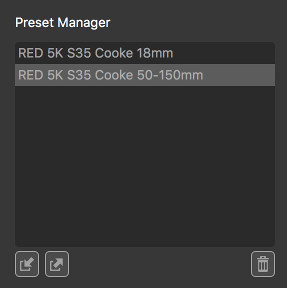
When PFTrack launches, any preset files stored in the user's documents folder presets/camera (or an alternative location as specified in the Preferences window) will be automatically loaded into the project.
Individual presets can be selected for export by clicking with the left mouse button, and managed using the following buttons:
 : Clicking this button will export the preset as an XML file.
 : Clicking this button will import a preset XML file.
 : Clicking this button will remove the preset from the project.