 |
PFTrack Documentation | Camera Presets |
Sensor Database
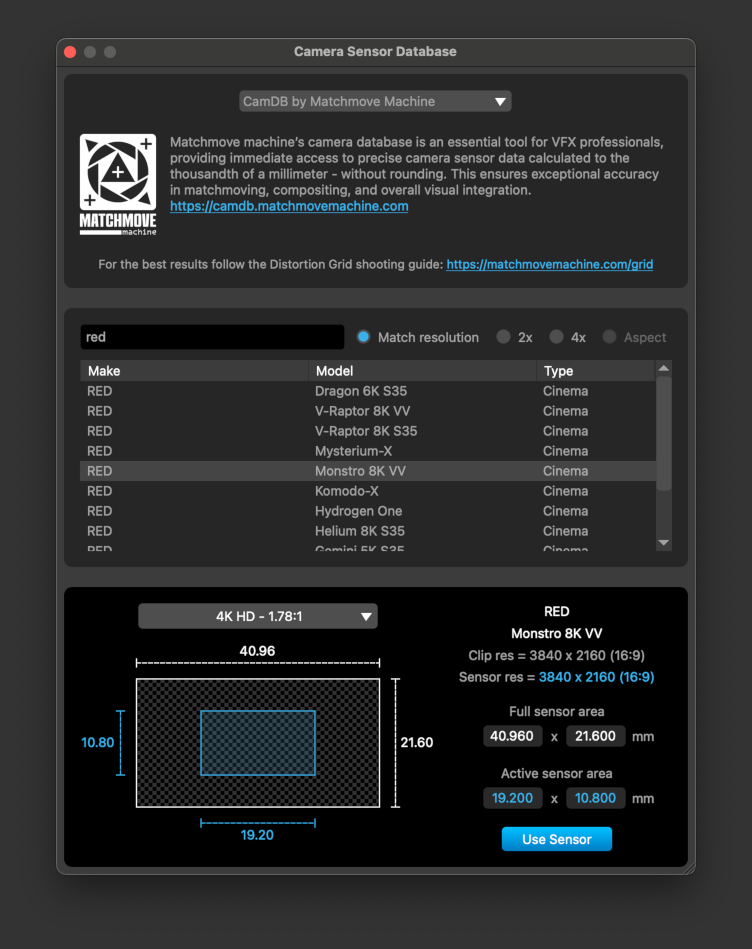
Searching for Sensors | Filtering Results | Selecting a Sensor Area | Custom DatabasesIf the sensor size of your camera is unknown and is not available from metadata, the Clip Input node and Movie Camera Preset panel have a Sensor Search button  that will open a search window and help you locate a suitable sensor size.
Setting the correct sensor size is essential for matchmoving when using a camera with a known focal length, as the sensor size will affect the overall field of view of the camera.
The search window provides access to various online databases containing sensor sizes for different cameras and shooting modes, including The Pixel Farm's online database.
Custom sensor sizes can also be defined as an XML file and selected for use instead of an online database. Further details are provided in the Sensor Presets section of Customizing PFTrack.
Searching for Sensors
Sensors can be searched for by clicking the following buttons:
- Match resolution: Search for sensors that exactly match the resolution of your clip.
- >2x: Search for sensors that are exactly 2x the resolution of your clip.
- >4x: Search for sensors that are exactly 4x the resolution of your clip.
- >Aspect: Search for sensors that have the same frame aspect ratio as your clip.
Switching off all search options will present a list of all cameras in the database, regardless of whether they can be used for your clip or not.
Filtering Results
Search results can be filtered by typing in the Filter by camera name.. edit box. This will filter results according to the text entered by Make, Model or Type.
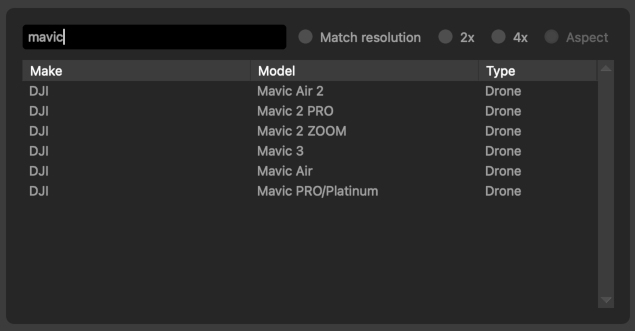
To clear the filter, delete all text from the edit box.
Selecting a Sensor Area
A camera model and be selected by clicking in the search result list. This will update the sensor area information at the bottom of the window according to whether the sensor can be used for your clip. A shooting mode can then be chosen from the drop-down menu:
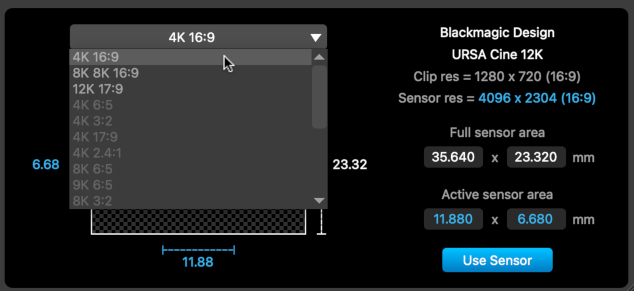
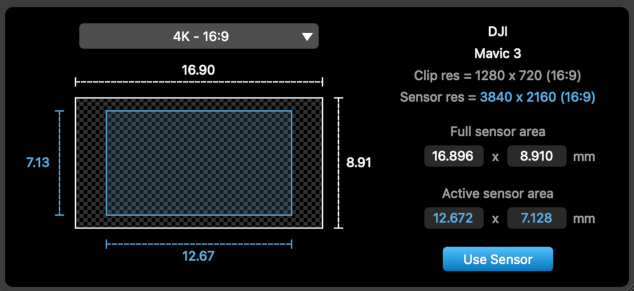
The following information is dispalyed:
- Clip resolution: The resolution (in pixels) and aspect ratio if your clip.
- Sensor resolution: The resolution (in pixels) and aspect ratio of the chosen camera shooting mode.
- Full sensor area: The area of the full-frame sensor*, measured in millimeters
- Active sensor area: The area of the sensor (in millimeters) used to capture the image in the chosen shooting mode.
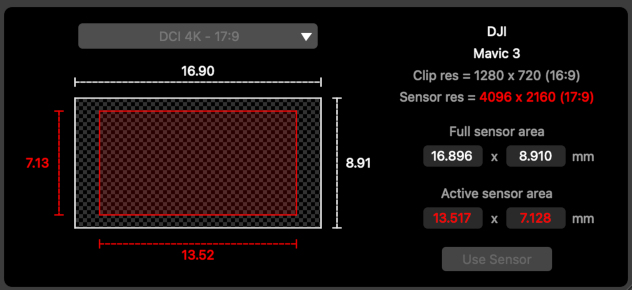
Not all modes will be available to use, for example when the aspect ratio of the shooting mode is different from the aspect ratio of your clip.
When selecting a shooting mode, the sensor diagram and size parameters will be displayed in blue when the sensor can be set for your clip, and the Use Sensor button will be enabled:
If the sensor cannot be used (for example, if your clip has a different aspect ratio than the selected shooting mode), the sensor diagram will be displayed in red and the Use Sensor button will be disabled:
Custom Databases
Custom sensor sizes can also be defined as an XML file and selected for use instead of an online database. Further details are provided in the Sensor Presets section of Customizing PFTrack.
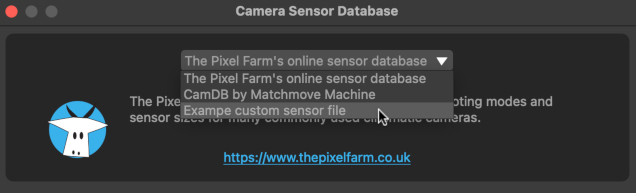
Custom databases can be accessed using the drop-down menu at the top of the sensor search window:
-----
* Note: not all databases have a full frame sensor defined for all cameras. When this information is not available, the sensor diagram will show the largest sensor area found for all shooting modes of that camera model for illustrative purposes.