 |
PFTrack Documentation | Customizing PFTrack |
Sensor Presets
The Clip Input node and Camera Preset panel contain search tools that can be used to locate sensor size information for specific cameras and shooting modes.
If you have additional sensor sizes available for cameras not in the online databases, you can create a custom sensor file that defines the cameras and sensor sizes and use that instead of the online databases.
An example file is included in the PFTrack installation folder media/example-sensors.xml that shows how to specify camera and sensor information:
<?xml version="1.0" encoding="UTF-8"?>
<sensors>
  <title>Exampe custom sensor file</title>
  <info>Example of an additional custom local sensor file</info>
  <id>example-sensors-file</id>
  <logo>example-sensors-icon.png</logo>
  <camera>
    <id>1</id>
    <make>Example</make>
    <model>6K Camera</model>
    <type>Cinema</type>
    <modes>
      <mode>
        <name>6K Full Frame</name>
        <aspect>1.85:1</aspect>
        <frame_width>6054</frame_width>
        <frame_height>3272</frame_height>
        <sensor_width>36.7</sensor_width>
        <sensor_height>19.84</sensor_height>
      </mode>
      <mode>
        <name>4K Anamorphic</name>
        <aspect>4:3</aspect>
        <frame_width>4096</frame_width>
        <frame_height>3024</frame_height>
        <sensor_width>24.83</sensor_width>
        <sensor_height>18.33</sensor_height>
      </mode>
      <mode>
        <name>2K Super35</name>
        <aspect>17:9</aspect>
        <frame_width>2048</frame_width>
        <frame_height>1080</frame_height>
        <sensor_width>24.83</sensor_width>
        <sensor_height>13.09</sensor_height>
      </mode>
    </modes>
  </camera>
  <camera>
    <id>2</id>
    <make>Example</make>
    <model>4K Camera</model>
    <type>Cinema</type>
    <modes>
      <mode>
        <name>4K DCI</name>
        <aspect>17:9</aspect>
        <frame_width>4096</frame_width>
        <frame_height>2160</frame_height>
        <sensor_width>25.34</sensor_width>
        <sensor_height>13.36</sensor_height>
      </mode>
      <mode>
        <name>4K UHD</name>
        <aspect>16:9</aspect>
        <frame_width>3840</frame_width>
        <frame_height>2160</frame_height>
        <sensor_width>23.76</sensor_width>
        <sensor_height>13.36</sensor_height>
      </mode>
      <mode>
        <name>HD</name>
        <aspect>16:9</aspect>
        <frame_width>1920</frame_width>
        <frame_height>1080</frame_height>
        <sensor_width>11.88</sensor_width>
        <sensor_height>6.68</sensor_height>
      </mode>
    </modes>
  </camera>
</sensors>
The top level sensors block must have a title, info and id as strings, and can also have a logo filename specifying a PNG image as either a local filename or an https URL.
The sensors block must contain one or more cameras, and each camera block must have a unique id that is an integer greater than 0, along with a make, model, and type as strings (for example, "Arri" "Alexa 35" and "Cinema", or "DJI" "Mavic-4 Pro" and "Drone").
One or more sensors must be defined inside the modes block as follow, with one entry for each shooting mode of the camera:
      <mode>
        <name>4K UHD</name>
        <aspect>16:9</aspect>
        <frame_width>3840</frame_width>
        <frame_height>2160</frame_height>
        <sensor_width>23.76</sensor_width>
        <sensor_height>13.36</sensor_height>
      </mode>
This defines the name and aspect as strings, along with the width and height of the captured image in pixels (frame_width and frame_height), and the width and height of the corresponding sensor area in millimeters (sensor_width and sensor_height).
If you have multiple shooting modes on your camera (for example, each using a different windowed sensor size), create one mode block for each and provide the appropriate sensor size for the mode using sensor_width and sensor_height).
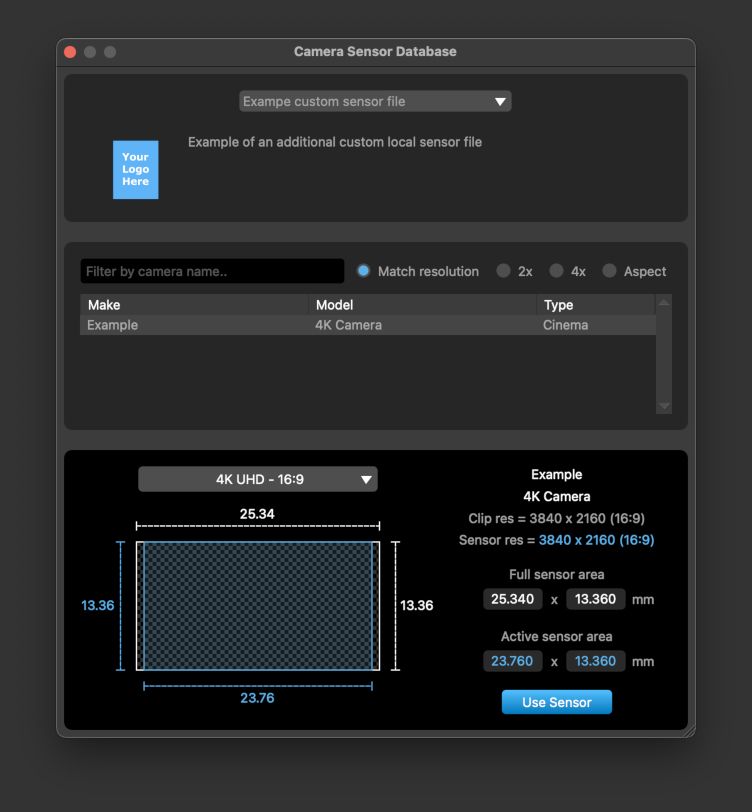
To use a custom sensor file, place the XML file (and any PNG logo file you wish to use) into the presets/sensors folder (or alternate location defined in the Preferences window). After launching PFTrack, the custom sensor file will be available to use in the Camera Sensor Database window by selecting the appropriate option from the menu: