 |
PFTrack Documentation | Project Manager |
Opening Old Projects
If you want to open an old project, click the Open Old Project button (1).
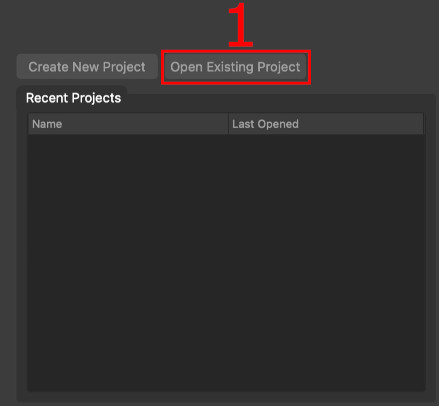
This will open a file browser where you can browse to the location of your project folder. Once you have located your folder, select the project file (with the .pftp file extension) and click the Open button.
After the project is loaded, PFTrack will automatically switch into the Workspace where you can continue work on your project. To get back to the project manager, click the Project Manager button  .
.
Note: It may not always be possible to open projects from very old versions of PFTrack in the latest version. Opening old projects may also mean they can no longer be opened in the version of PFTrack that was originally used to create them. Please backup your old projects before opening them.
Recent projects
As projects are created or opened, they will be added to the recent projects list, showing when each was most recently opened.
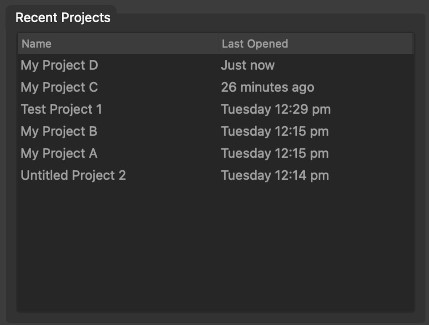
To quickly open a recent project, double-click with the left mouse button on the project name. This will open the project and automatically switch to the Workspace where you can continue work on your project.
Removing projects
If you no longer want a project to be listed in the recent projects just, select it by clicking once with the left mouse button and then press the Del key to remove it from the list. Note: removing an old project in this way will only remove the entry in the list. It will not delete any of the project data from disk.
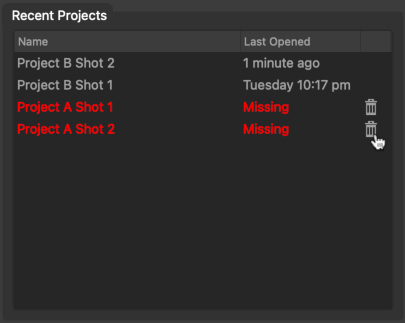
If a project no longer appears on disk (for example, because it has been archived elsewhere), it will be displayed as Missing. To remove it from the list, either use the Del key or click the Delete icon.
Locked projects
When opening a project, PFTrack may display a warning message indicating the project file is locked.
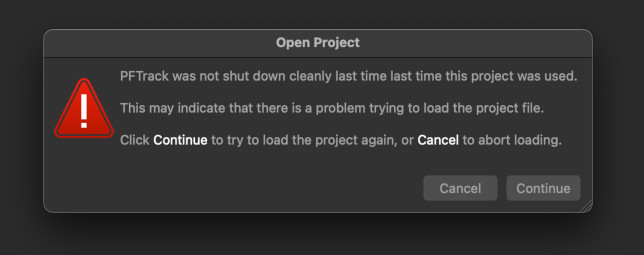
This may occur if PFTrack was not closed cleanly using the Exit button at the top-right of the Workspace the last time the project was used.
To remove the lock file and continue opening the project, click the Continue button, or to abort opening the project click the Cancel button.