 |
PFTrack Documentation | Licensing |
Solo Licensing
Launching PFTrack Solo | Purchasing a license | Changing computer | Uninstalling PFTrack | TroubleshootingPFTrack Solo is available for Microsoft Windows, and Apple macOS and Linux (RHEL compatible), and is suitable for individuals operating on their own computer. It is licensed online and can run on a single computer at a time. Licensing requires a persistent internet connection to The Pixel Farm's servers to operate.
Further information about the Solo Edition is available on the product ranges page, and the PFTrack Solo Edition End User License Agreement.
Launching PFTrack Solo
Launch PFTrack Solo and log in using your preferred identity provider such as Google, Apple or LinkedIn when prompted in your desktop web browser window.
Provided you enabled the Remember me on this device option, the next time you launch PFTrack on the same computer you will not have to log in again*.
After completing the login process you can close your web browser window, and PFTrack will start your 7 day trial. Once your trial expires, you will need to purchase a solo license to continue using PFTrack.
Purchasing a license
Purchase a solo license at any time by clicking the Activate Solo License button at the top of the main window:
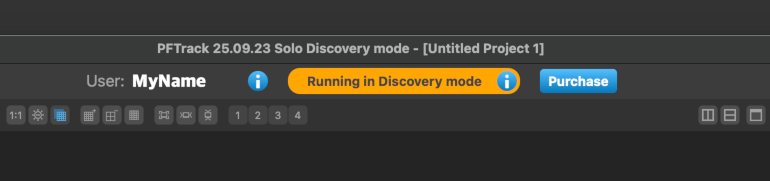
Solo licenses provide perpetual access to PFTrack for a single one-off payment. Please review the PFTrack Solo Edition Sales Terms before purchasing.
Students with a valid university or education email address can apply for a 50% discount coupon to purchase one solo license. Further details are available in the purchasing window in PFTrack.
Purchasing opens a secure checkout portal in your desktop web browser that connects to Stripe, The Pixel Farm's online purchasing partner. After completing your purchase, PFTrack will restart and your solo license will be activated.
Changing computer
If you wish to change the computer you are using, install and run PFTrack Solo on another computer and log in using the same identity provider as you used to purchase your license. For example, if you used Google to log in previously, make sure to log in using the same Google identity as before.
This will update your license to run on your new computer and automatically invalidate your login status on your old computer. PFTrack Solo will not be able to run on your old computer unless you log in again there.
Uninstalling PFTrack
If you no longer wish to use PFTrack on a computer, you can remove all your settings and preference files after uninstalling the software by deleting your folder.
Troubleshooting
This section contains a list of licensing issues you may encounter when running PFTrack Solo, along with further information to help you resolve the problem.
This computer does not have a valid host ID
The host ID is a security key that is used to uniquely identify your computer hardware and is required to license PFTrack to your computer.
If you see this error message, it means that PFTrack is unable to identify your computer hardware. This may be because it is running in a virtual machine or similar container that is not able to provide such an identifier. Virtual machines are not supported when using PFTrack Solo.
Solution: Install PFTrack on a computer with a standard physical network interface controller such as an Ethernet or Wifi card, or contact The Pixel Farm directly for further information about the Studio and Enterprise editions.
I keep having to log in to PFTrack each time
If you keep having to enter your login details despite making sure the Remember me on this device option is enabled*, this may be caused by the host ID changing on your computer.
The host ID is a security key that is used to uniquely identify your computer hardware and is required to license PFTrack to your computer, and is derived from your network interface hardware.
Solution: Refer to the Network Configuration section for further information on how to configure your network to use a fixed host ID.
I have logged in and PFTrack doesn't recognise my license
If you have logged in using a different identity provider and PFTrack is no longer recognising your license, close PFTrack and delete the configuration file auths.dat.
Then, launch PFTrack and log in again, making sure to use the same identity provider (e.g. Google, LinkedIn etc..) as you used when purchasing your license. For example, if you originally logged in and purchased PFTrack using your Google identity, make sure to log in again using the same Google email address and password.
-----
* Note: you will be logged out of PFTrack automatically after a prolonged period of inactivity. If this occurs, log in again using the same identity provider as before.