 |
PFTrack Documentation | Licensing |
Studio Licensing
Setting up a Studio account | Purchasing entitlements | Authorising computers | Deauthorising computers | TroubleshootingPFTrack Studio is suitable for teams of operators in a studio environment. A Studio account must be set up prior to purchase and managed by a single account owner. Any number of entitlements can be purchased and used by any operator on any authorised computer. The account owner has full control over which computers are authorised to use the software.
Further information about the Studio Edition is available on the product ranges page, and the PFTrack Studio Edition End User License Agreement.
Setting up a Studio account
Cisit pftrack.com and sign up for a Studio account.
After agreeing to the account terms and conditions, completing the account creation process and verifying your email address, you will be able to purchase Studio entitlements online using a credit or debit card.
Purchasing entitlements
To purchase one or more entitlement online using a credit or debit card, click the Add entitlement button. After choosing your entitlement duration you will be directed to a secure Stripe checkout page where you can complete your purchase.
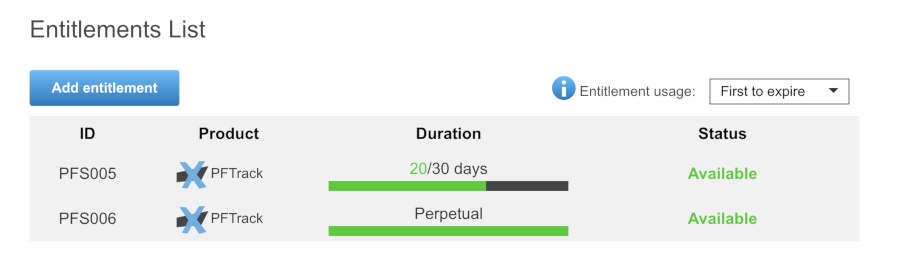
After purchasing an entitlement, software downloads for the latest version will become available in the Downloads section at the bottom of the page and you can start to authorise computers to use your entitlements.
Authorising computers
Authorising a computer is a quick and easy process. Just copy the authorisation code from your account page and enter it into the software on each machine where you want to use PFTrack.
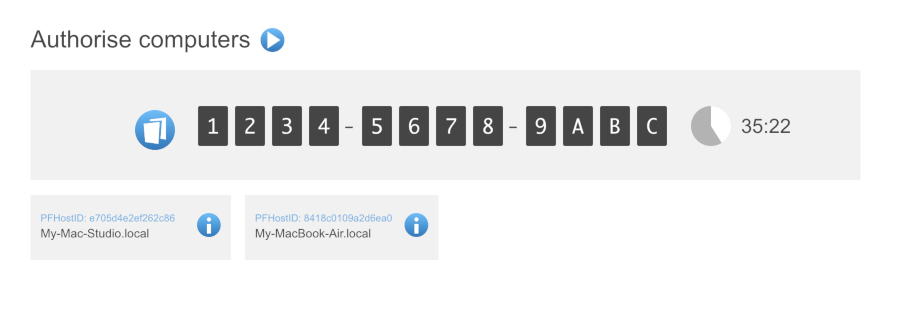
Each authorisation code is valid for 1 hour, and as soon as it exires another code will be generated for you automatically whilst you remain logged in to your Studio account.
After taking a copy of the code, install and launch PFTrack on each computer where you want to use it, and enter the code in the launch window:
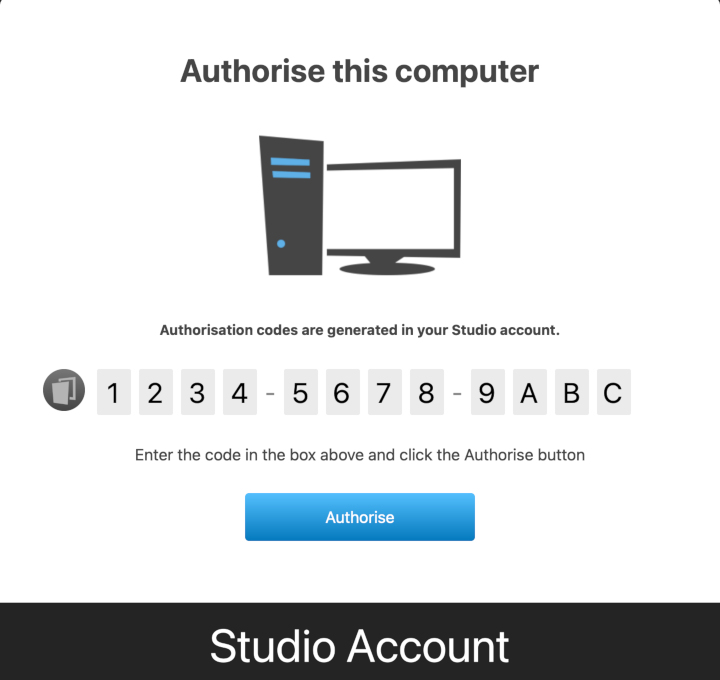
Click the Authorise button to complete the authorisation process. Each machine will appear on your account page as when it is authorised.
If the code is entered incorrectly, or has expired, you will see the following message in PFTrack:
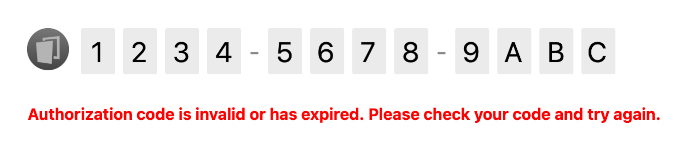
If this occurs, go back to your account page to check the code again. If the code has expired, a new one will generate automatically whilst you remain logged in to your Studio account.
Note: if multiple users are logging in to the same computer to run PFTrack, each user may have to authorise PFTrack separately. This will still show as a single authorised computer in your Studio account.
Deauthorising computers
As computers are authorised, they will appear in the list below the authorisation code in your account. Whilst a computer is authorised, PFTrack will run on it without any further validation.
If you want to deauthorise a computer and remove it from the list, click the info button  next to the computer name. This will display a popup window with a Remove button. Click this button to de-authorise the computer and remove it from the list
After a machine is deauthorised it can no longer be used to run PFTrack until it is authorised again.
After de-authorising, you can remove all settings and preference files after uninstalling the software by deleting the folder for each user who ran PFTrack.
Troubleshooting
This section contains a list of licensing issues you may encounter when running PFTrack Studio, along with further information to help you resolve the problem.
This computer does not have a valid host ID
The host ID is a security key that is used to uniquely identify your computer hardware and is required to license PFTrack to your computer.
If you see this error message, it means that PFTrack is unable to identify your computer hardware. This may be because it is running in a virtual machine or similar container that is not able to provide such an identifier.
Solution: Install PFTrack on a computer with a standard physical network interface controller such as an Ethernet or Wifi card or ensure your platform is configures to provide a fixed host ID.
This computer is no longer authorized to run PFTrack
This message may appear when using PFTrack Studio, and indicates that the authorization credentials that were previously used are no longer valid.
This may be because the computer has been de-authorised in your account, or it may be because the host ID for your computer has changed since it was last authorised.
The host ID is a security key that is used to uniquely identify your computer hardware and is required to license PFTrack to your computer, and is derived from your network interface hardware.
Solution: Check with your Studio account owner to make sure your computer has not been de-authorised. Refer to the Network Configuration section for further information on how to configure your network to used a fixed host ID. Your Studio account owner must log in to their account and re-authorise your computer.
The software was left running but we need to use the entitlement elsewhere
If software is running on a computer and it cannot be closed using the Exit button, you must deauthorise that computer to free the entitlement for use elsewhere.
This will stop the application running on the computer. If you need to run the software on that computer again at a later date, enter another authorisation code next time the software is launched.