 |
PFTrack Documentation | Workspace |
Node Controls
In order to access the controls of a node, it must be activated. To do this, double-click on the node with the left mouse buttonin the workpage.
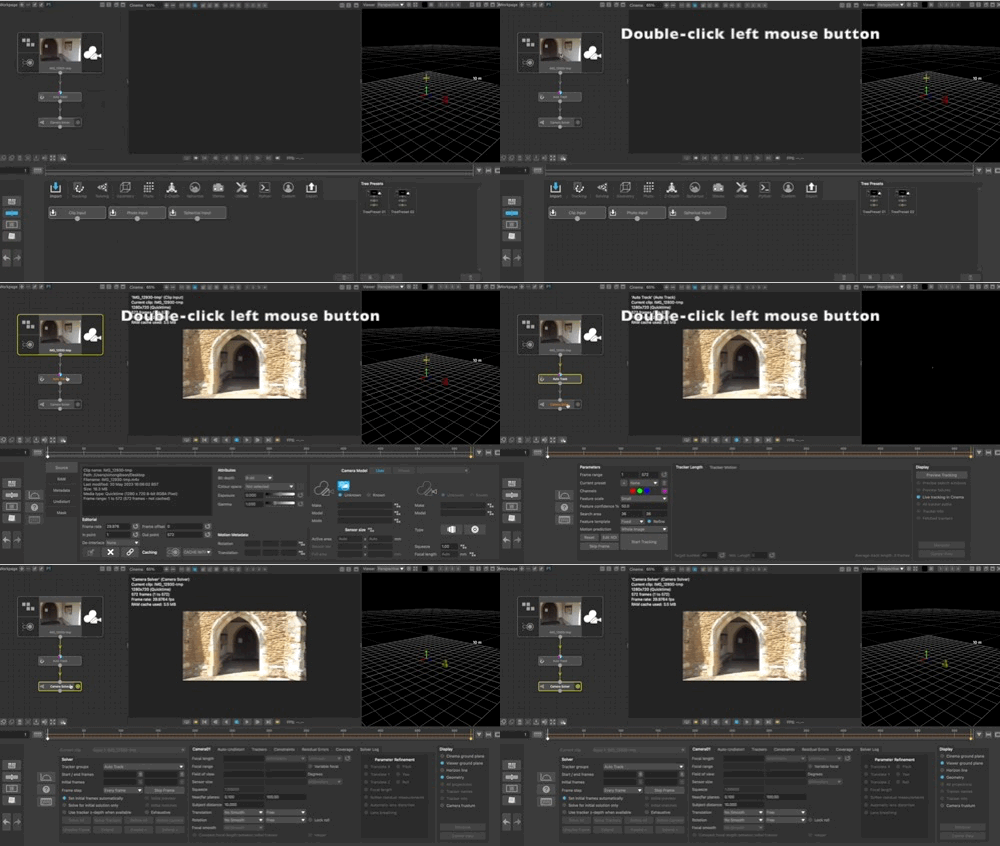
This will display the node controls in the lower workspace area. The controls different for each node, and further information on how each node operates is provided in the Node Reference section.
There are some buttons common to each node, and these are positioned to the left of the node controls for quick access:
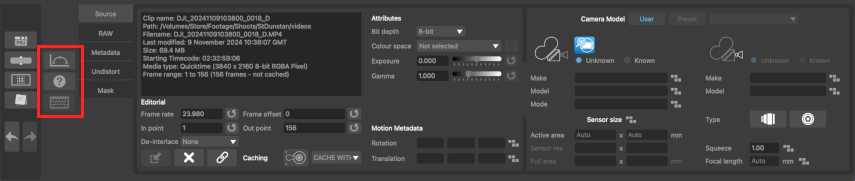
 : The Curve Editor button will display the curve editor and all parameter curves that are available for editing.
 : The Help button will open the documentation page for the specific node controls being used.
 : The Keyboard shortcuts button will display a popup window showing the current keyboard shortcuts for the node.
To display the node panel again, click the Node Panel button at the left-hand side of the lower workspace.