 |
PFTrack Documentation | Node Reference |
Camera To Object
Usage | Controls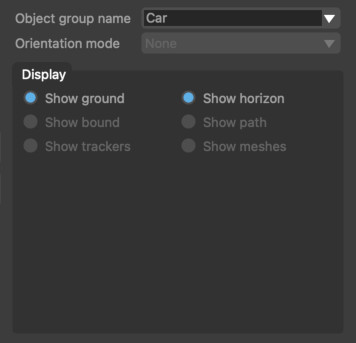
The Camera To Object node can be used to change camera motion relative to a static object into object motion relative to a camera. This can be used in situations where a Camera Solver or Survey Solver has been used to track camera motion around a rigid object, rather than using the Object Solver node.
The Camera To Object node has two inputs and one output. The first input must contain a camera tracked relative to the background plate, and the second input must contain a camera tracked relative to an object.
The output of the node contains a scene with the object moving relative to the camera from the first input. This is similar to the result that would be obtained by tracking a moving object using an Object Solve node. Any mesh objects that are present in the second input will also be transformed so they are relative to the camera from the first input.
To change the name of the tracking group generated by the Camera To Object node, rename the node on the Workpage.
Usage
Camera motion from the second input is changed automatically into object motion relative to the camera from the first input. The name of the new object group can be changed by editing the Object group name box.
The Tracker Groups menu can be used to select which tracker groups from the second input should be used to build the new object.
The Transform menu can be used to change the position and orientation of the new object's pivot, and the distance of the object from the camera.
By default, the pivot location is set to the centre of the object, although if desired the original origin of the points from the second input can be retained by clicking the  button.
It is important to ensure the size of the object is set correctly, as this cannot be calculated automatically. This will default to the value defined by the upstream camera solver. It can be set numerically using the Scale edit box, or can be adjusted interactively using the Distance From Camera transform mode. Alternatively, an Orient Camera node can be used upstream to fix the distance between two trackers on the object.
The Translate and Rotate edit boxes reflect the change in position and orientation of the object's pivot with respect to the origin of the original object coordinate system and can be adjusted numerically if required.
When using Snap pivot to tracker, click on a tracker in the Cinema window with the left button to snap the pivot point to that tracker.
When the Transform mode is set to None, trackers can be selected in the Cinema window by clicking with the left button. Selected trackers will display their positon and distance from the camera. Hold the Ctrl key to select multiple trackers at the same time.
Click the reset button  to revert all changes made to the object back to their default values.
To produce the best results, the focal length of the cameras provided by both inputs should be the same. If this is not the case, the trackers or geometry provided by the second input may not align correctly with image features when viewed through the camera from the first input. The recommended workflow is to first track the main camera in the scene (i.e. the first input), then use the same focal length in the camera or survey solver that is used to generate the moving object (i.e. the second input).
Controls
Transfrorm: The mode by which to transform the object bounding box. Options are:
- Translate pivot, display a translation widget allowing the object's pivot to be adjusted in either the Cinema window or a 3D viewer window.
- Rotate around pivot: display a rotation widget allowing the orientation of the group's coordinate system to be adjusted in either the Cinema window or a 3D viewer window.
- Distance from camera: display a scale widget at the current camera position in a 3D viewer window. Adjusting the scale widget will scale the object group and move it towards or away from the camera.
- Fly: When this option is chosen, the group's coordinate system can be translated, rotated or scaled by holding the Alt/Option key and using the right, middle or left mouse buttons in the Cinema window.
- Snap pivot to tracker: When this option is chosen, click on a tracker point in the Cinema window to set the object's pivot that point.
Display
Show Ground: When enabled, the ground plane will be displayed.
Show Horizon: When enabled, the horizon line will be displayed.
Show Bound: When enabled, the bounding box of the object group will be displayed
Show Path: When enabled, the path of the moving object will be displayed
Show Trackers: When enabled, tracking points will be displayed
Show Meshes: When enabled, mesh objects will be displayed
Default Keyboard Shortcuts
Default keyboard shortcuts are listed in the Keyboard and mouse section.