 |
Studio / Enterprise | PFTrack Documentation | Available Support Resources |
Opening a ticket
Creating a new ticket | Viewing your ticketTicketed support is available to Studio and Enterprise customers.
Creating a new ticket
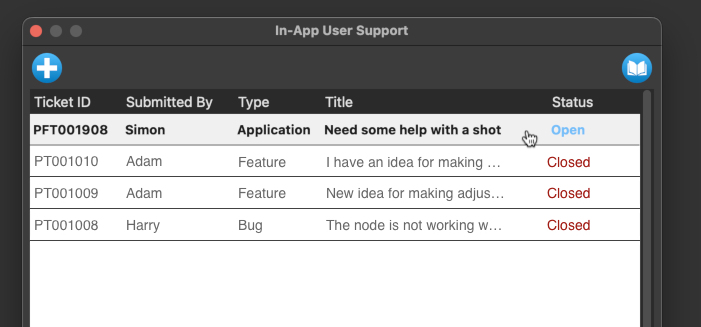
To create a new ticket, click the new ticket button  in the top left of the user support window.
1. Enter your information
The following screen will ask you to enter your some information, including your name, a title for your support request, and detail about the question or problem you are having:
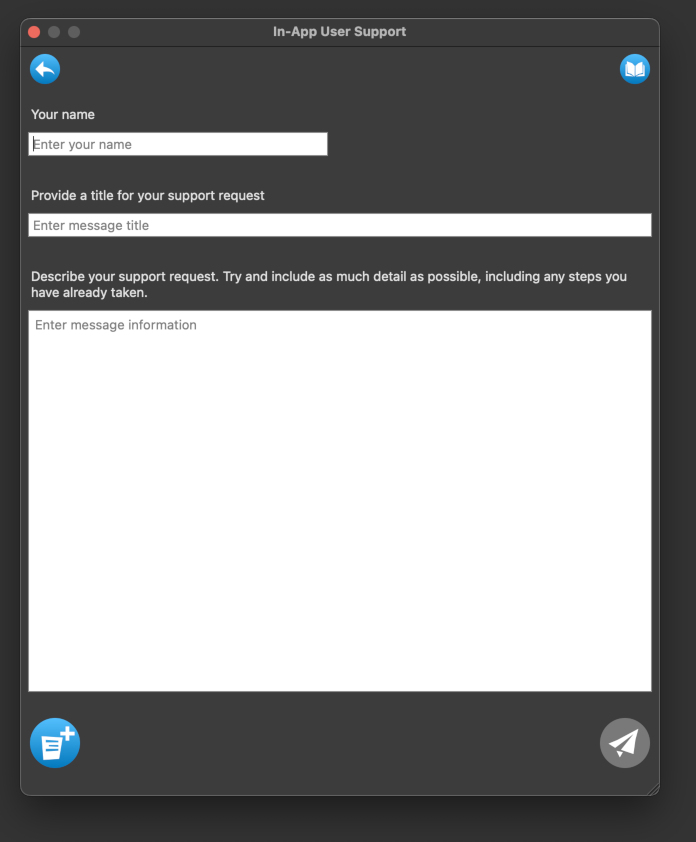
If you wish to attach the PFTrack log file to the ticket, click the Attach Log button  . Log files can also be added to a ticket at a later date if required.
Click on the send button  to submit your ticket.
2. Ticket confirmation
Once you have submitted your ticket you will see a confirmation message and an assigned ticket number.
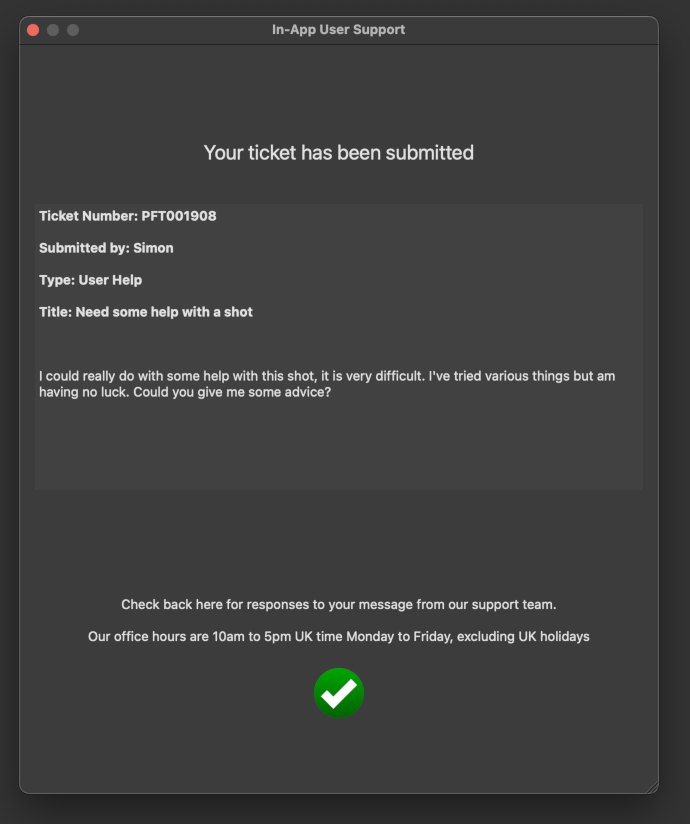
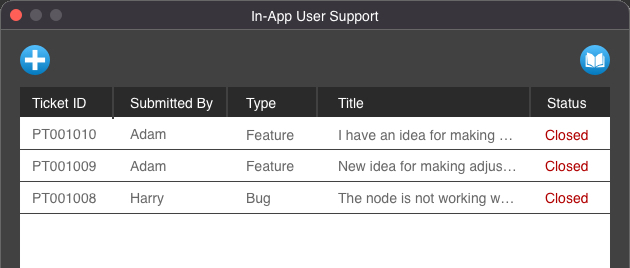
Click the continue button  to take you back to the ticket list screen. Its status will remain submitted until a member of our support tearm accepts it.
Viewing your ticket
You can view your ticket at any time by clicking it.